
Download Iperius Remote – Secure Multi‑Platform Remote Control Software
Overview
Iperius Remote is a freemium remote‑control solution that bridges the gap between personal productivity and professional IT support. Built on bank‑level security protocols such as TLS 1.2 and DTLS‑SRTP, the application complies with both HIPAA and GDPR, making it a trustworthy choice for users who value privacy. Unlike many free remote‑desktop tools, Iperius Remote delivers an ad‑free experience, allowing you to focus on the task at hand without distractions.
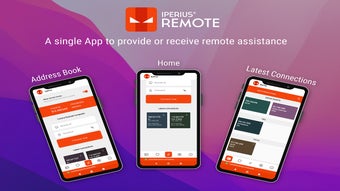
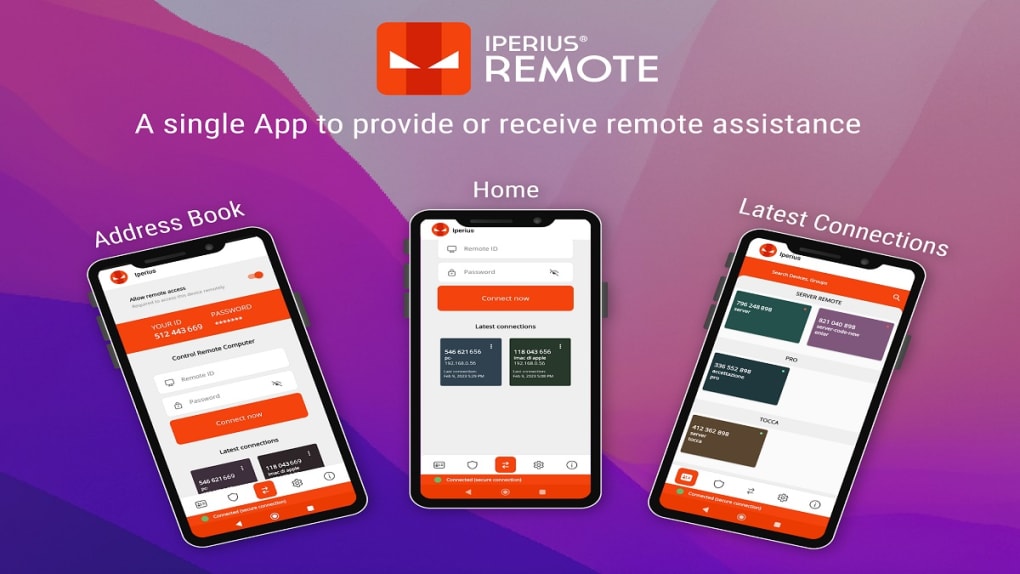
Whether you need to troubleshoot a colleague’s workstation, access files from a home PC, or provide on‑the‑go assistance to an Android device from your smartphone, Iperius Remote’s multi‑platform design keeps you connected across Windows, macOS, Linux, Android, and iOS. The interface is deliberately minimalist: a clear dashboard shows the remote device’s ID, a password field, and a single “Connect” button. This simplicity reduces the learning curve for non‑technical users while still offering power users advanced options like unattended access, custom branding, and granular permission controls.
In commercial environments, the software scales with optional paid licenses that unlock additional seats and centralized management. Overall, Iperius Remote positions itself as a secure, reliable, and user‑friendly tool for anyone who needs to control another computer or mobile device from anywhere in the world.
Key Features & Capabilities
- Cross‑platform connectivity – Windows, macOS, Linux, Android, iOS.
- End‑to‑end encryption with TLS 1.2 and DTLS‑SRTP for HIPAA/GDPR compliance.
- Unattended access for servers and workstations without requiring on‑site approval.
- File and folder transfer with drag‑and‑drop support.
- Remote printing – print documents on the remote machine from your local device.
- Session video recording for audit trails or training purposes.
- High‑performance video calls up to 60 FPS for smooth visual interaction.
- Shared address book to store frequently accessed devices.
- Custom branding & white‑label options for businesses.
- Automatic firewall traversal – no manual port forwarding needed.
- Access control permissions – define who can view, control, or edit.
- Low‑latency performance even over intercontinental connections.
The feature set is deliberately balanced between essential remote‑desktop functions and premium tools that add real‑world value. For example, the video‑recording capability is useful for compliance‑heavy industries that must retain proof of remote sessions. Meanwhile, the shared address book removes the need to remember or copy IDs each time you connect, streamlining daily workflows for IT teams. Although Iperius Remote does not include built‑in collaboration tools such as shared whiteboards or a meeting scheduler, its core focus on secure, reliable access means you get a lean product that does exactly what it promises without unnecessary bloat.
Installation & Usage Instructions
Step‑by‑Step Setup
Getting started with Iperius Remote is designed to be as painless as possible. Follow these steps on both the local (controlling) and remote (controlled) devices:
- Download the installer from the official Iperius Remote website. Choose the appropriate version for your operating system (Windows, macOS, Linux, Android, or iOS).
- Run the installer. On desktop platforms, accept the license agreement and let the wizard complete the installation. Mobile users will be redirected to the App Store or Google Play for a one‑click install.
- Create an account (optional). While a basic connection works without an account, signing up enables features like the shared address book and cloud‑based session logs.
- Launch the application on both devices. Each instance displays a unique Iperius Remote ID and a temporary password.
- Enter the remote ID and password on the controlling device’s connection screen.
- Click “Connect”. The encrypted tunnel is established automatically, and the remote desktop appears within seconds.
Tips for a Smooth Experience
• Keep the software updated. Automatic updates ensure you always run the latest security patches and performance improvements.
• Enable unattended access if you need to manage servers or workstations after hours.
This requires setting a permanent password and adjusting the access permissions in the settings menu.
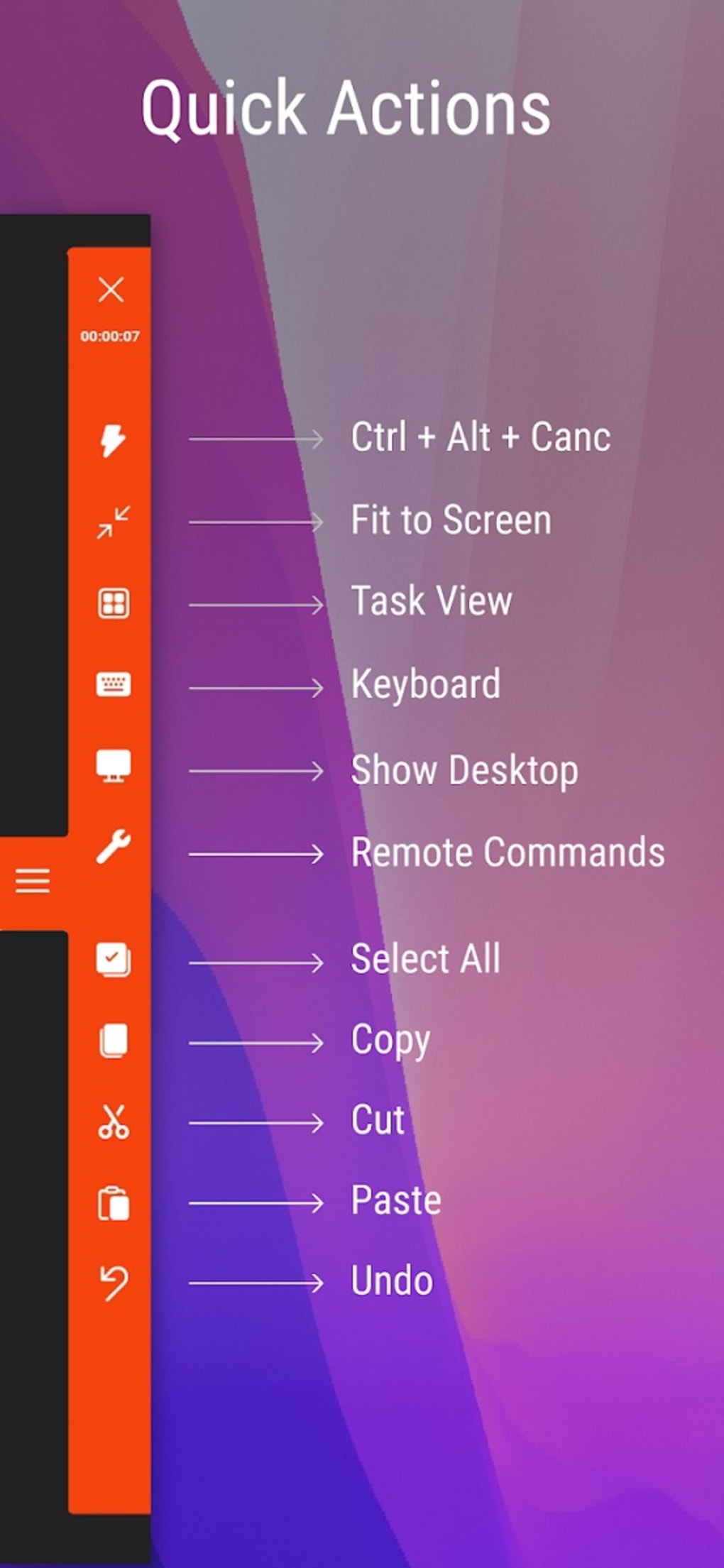
• Use the built‑in file manager for quick transfers; you can drag files from your local explorer directly into the remote window.
• Adjust video quality in low‑bandwidth environments.
A lower frame rate reduces latency without sacrificing control precision.
• Leverage the shared address book for teams. Adding contacts centrally saves time and reduces the risk of mistyping IDs.
The overall workflow mirrors that of leading remote‑desktop products, but the absence of intrusive ads and the presence of enterprise‑grade encryption set Iperius Remote apart. Once the initial connection is established, you can perform virtually any task on the remote machine—install software, edit documents, run diagnostics, or simply retrieve a file—just as if you were sitting in front of it.
Compatibility, Pros & Cons
Iperius Remote supports the following operating systems:
- Windows 10, 11, Server 2016‑2022
- macOS 10.15 (Catalina) and later
- Linux distributions with glibc 2.17+ (Ubuntu, Fedora, Debian, etc.)
- Android 6.0 (Marshmallow) and later
- iOS 13 and later
Pros
- Bank‑level end‑to‑end encryption ensures data privacy.
- Ad‑free free tier makes it suitable for private users.
- Cross‑platform support eliminates the need for multiple tools.
- Unattended access and granular permission settings cater to IT professionals.
- High‑FPS video calls and session recording add value for training and compliance.
- Automatic firewall traversal simplifies network configuration.
- Custom branding options allow businesses to maintain a consistent visual identity.
Cons
- Lacks built‑in collaboration features such as shared whiteboards or a meeting scheduler.
- Advanced features (e.g., multi‑seat licenses, centralized management) require a paid plan.
- No native chat or annotation tools within the remote session.
- While the UI is clean, power users may miss deeper scripting or automation capabilities.
In summary, the strengths of Iperius Remote revolve around security, simplicity, and genuine cross‑platform reach. The primary drawbacks are its limited collaboration toolbox and the fact that some enterprise‑grade features are locked behind a paywall. For users whose main goal is secure remote access rather than full‑blown virtual meetings, the trade‑off is more than acceptable.
Overall Rating: 4.5 / 5
Frequently Asked Questions
Is Iperius Remote completely free for personal use?
Yes, the core remote‑control features are free for private individuals. The free tier includes ad‑free access, file transfer, and unattended connections, but commercial users need to purchase a license for multi‑seat deployment.
What encryption standards does Iperius Remote use?
The software employs TLS 1.2 for data‑in‑transit encryption and DTLS‑SRTP for real‑time media streams, meeting both HIPAA and GDPR compliance requirements.
Can I control an Android phone from a Windows PC?
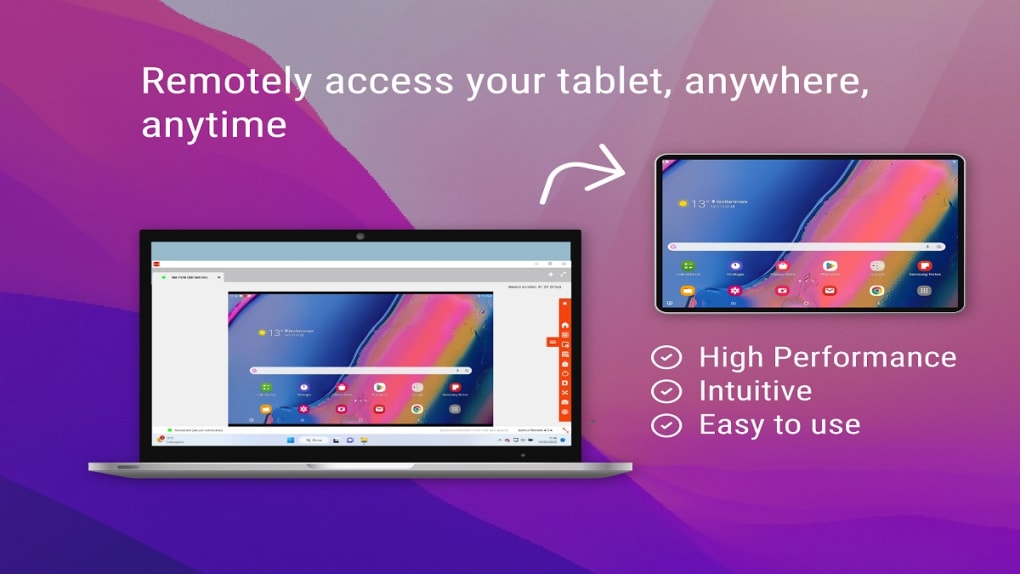
Absolutely. Iperius Remote’s Android client allows full remote control, including screen sharing, file transfer, and remote printing, all from a Windows, macOS, or Linux host.
Do I need to open ports on my router?
No. The application uses automatic firewall traversal techniques, eliminating the need for manual port forwarding in most home and office environments.
Is there a way to record remote sessions?
Yes, the paid version includes a built‑in session recorder that saves video files locally for later review, useful for audits or training.
Conclusion & Call to Action
Iperius Remote stands out in a crowded market by delivering a secure, ad‑free, and genuinely cross‑platform remote‑control experience. Its robust encryption, unattended access, and high‑performance video calls make it a compelling choice for both home users and IT professionals. While the lack of integrated collaboration tools may steer power users toward more feature‑heavy suites, anyone whose primary need is reliable, encrypted remote access will find Iperius Remote to be a solid, cost‑effective solution. Ready to take control of your devices from anywhere? Download Iperius Remote now and experience secure remote access without the hassle.







